How to start your Cdcfib exam on your Phone/Laptop
How to Start Your CDCFIB Exam on Your Phone or Laptop (Step by Step)
This guide shows the correct way to start the CDCFIB online CBT using a phone or laptop.
Important note: The official CDCFIB recruitment portal currently displays that the CBT examination is closed. If your exam window is not active, you will not be able to start until CDCFIB opens it again. Always confirm on the official portal first.
Step 1: Use the correct official portal
Start from the official CDCFIB recruitment portal: https://recruitment.cdcfib.gov.ng
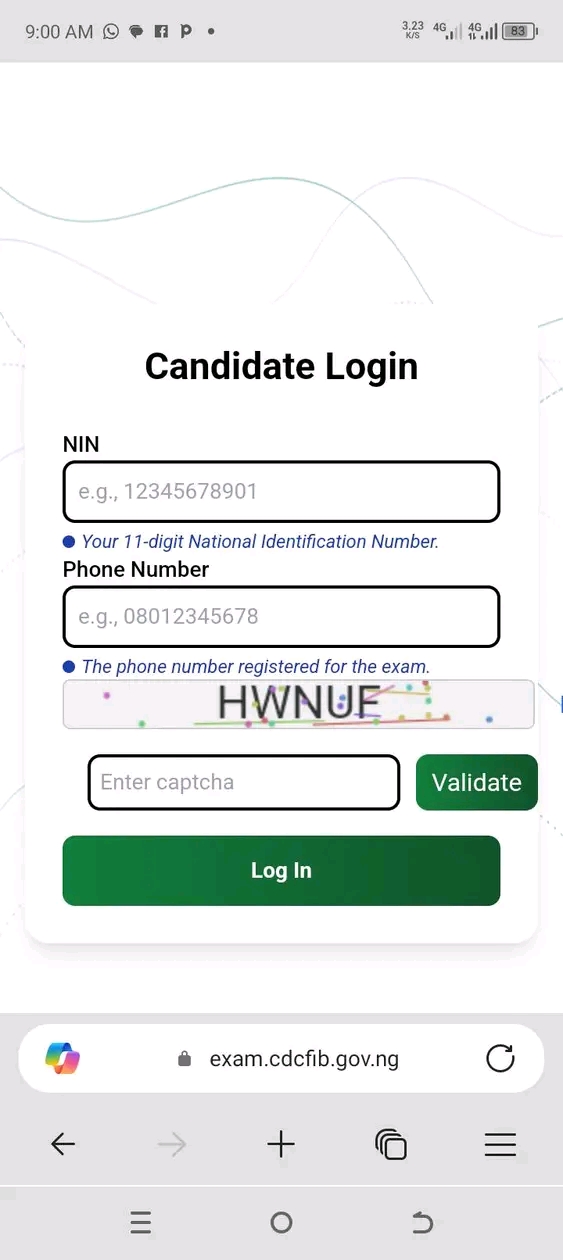
On the login/test page, you will typically be asked for: - NIN (11 digits) - Phone number (the one used during registration) - Captcha/verification Then you click Validate and Log In (or similar).
Step 2: Confirm your device is ready (do this before exam time)
For Laptop: - Use a modern browser (Chrome is recommended) - Ensure your camera is working (if photo verification is required) - Plug your laptop to power or ensure battery is strong - Use stable internet (WiFi is better than weak mobile data)
For Phone: - Use Chrome browser - Turn on strong internet - Enable Do Not Disturb so calls do not interrupt you - Turn your phone to landscape mode for better view
Step 3: If you are using a phone, switch Chrome to Desktop site
Many candidates find the exam page works better on phone when Chrome is set to Desktop site.
How: - Open Chrome - Tap the 3-dot menu (top right) - Tick Desktop site Then refresh the page.
Step 4: Log in early (do not wait till the exact minute)
Some published candidate instructions say the portal can open about 30 minutes before your scheduled time so you can do verification and wait in the exam room.
Best practice: - Try to log in 20 to 30 minutes early - Complete the verification step (if it appears) - Stay on the page until the exam starts
Step 5: Enter your login details correctly
On the login page, enter: - Your 11-digit NIN - The exact phone number used during registration - Complete the captcha (if shown) - Click Validate, then click Log In
If the portal says invalid details: - Confirm you typed your NIN correctly (11 digits) - Confirm the phone number is the same number you used when applying - Refresh captcha and try again
Step 6: Complete photo/camera verification (if requested)
Some candidates are asked to do photo verification before entering the waiting room. If your browser blocks camera: - Click the camera icon in your address bar - Allow camera permission - Refresh and try again
Step 7: Start the exam and submit properly
When the exam begins: - Answer easy questions first, then return to hard ones - Watch your timer - Click Submit only when you are sure you are done - Wait for the final confirmation page after submission
Common problems and quick fixes
Problem 1: Portal not opening or loading
Fix: - Change network (try stronger data or WiFi) - Try early morning or off-peak time - Use another browser if Chrome fails
Problem 2: Page shows "CBT examination closed"
Fix: - That means there is no active exam window for you at that time - Confirm your scheduled time and official updates on the recruitment portal
Problem 3: I cannot log in
Fix: - Wrong NIN or wrong phone number is the most common cause - Use only the phone number you registered with - Refresh captcha and try again
Problem 4: Camera verification not working
Fix: - Allow camera permission in your browser - Use a laptop with a working webcam if your phone camera permission is failing - Close other apps that may be using the camera
Security warning (very important)
Only use links that are connected to the official CDCFIB recruitment portal. Avoid random links shared in groups. Phishing sites can steal your NIN and phone number.


CDCFIB Exam Login FAQs (Phone and Laptop)
What is the official CDCFIB exam portal to start the CBT?
The safest method is to start from the official recruitment portal: https://recruitment.cdcfib.gov.ng From there, follow the exam/login page instructions.
What details do I need to start the CDCFIB exam?
You typically need: - Your 11-digit NIN - The phone number you used during registration - Captcha/verification (if shown)
I entered my details but it says invalid. What should I do?
- Confirm NIN is 11 digits and correctly typed
- Use the exact phone number used during registration
- Refresh captcha and try again
Can I write the CDCFIB exam with my phone?
Yes, if the portal supports it. If the page is not displaying well, use Chrome and switch to Desktop site, then rotate to landscape.
Why is the CDCFIB exam portal showing "CBT examination closed"?
The official portal can display that the CBT examination is closed when there is no active exam window. Confirm your schedule and official updates.
What browser is best for CDCFIB exam?
Chrome is usually the most compatible. If issues persist, try another modern browser and ensure your internet is stable.
The portal is not loading. Is it my phone?
Sometimes it is network traffic or weak internet. Try: - stronger network (WiFi if possible) - refresh once or twice - clear browser cache - try again during less busy hours
The exam is asking for camera verification. What should I do?
Allow camera permission in your browser. If your phone camera permission fails, use a laptop with a working webcam if available.
How early should I log in?
It is safer to log in 20 to 30 minutes early so you can complete verification and be ready when the exam starts.
For more update Join Channel

About Author
smartjamb
My name is smartjamb. I love writing and sharing ideas, especially on scholarships, educational news, career guidance, and academic topics that catch audience attention and provide real value to students and educators.
Passionate about education • Dedicated to sharing valuable insights • Helping students succeed